The Problem Automated sync apps break constantly. Transactions disappear during the transfer process.
The Real Culprit Data mismatches cause most missing transactions. Shopify and QuickBooks categorize details differently.
Common trigger points for sync failures:
* Discounts: Coupon codes disrupt the total price calculations.
* Gift Cards: QuickBooks treat gift cards as liabilities, not immediate sales.
* International Orders: Currency conversion rates confuse the automated software.
The Fix
Check your error log inside the sync app. Look for red warning flags.
Manually export the specific failed order dates via CSV file. Import that data file directly into QuickBooks. This bypasses the broken automation.
The Quick QuickBooks Check for Missing Shopify Cash
The Problem
Your Shopify dashboard says you made money. Your bank account shows a deposit. Yet, QuickBooks shows a completely blank space or a mismatched number for that date.
The Cause of QuickBooks Blindness
QuickBooks only knows your manual instructions. If your sync app breaks, QuickBooks treats that day as if zero sales happened. It does not automatically cross-reference Shopify to find the error.
The 60-Second Check
Open QuickBooks Online.
Click Banking or Transactions on your left menu.
Click on your Bank Feed.
Find the specific deposit from Shopify.
Look at the status column. If it says “Add” instead of “Match”, your integration failed. QuickBooks has no record of the sale.
The Quick Fix.
Do not Click “Add” Clicking “Add” records the deposit as generic income, which duplicates your tax liability later.
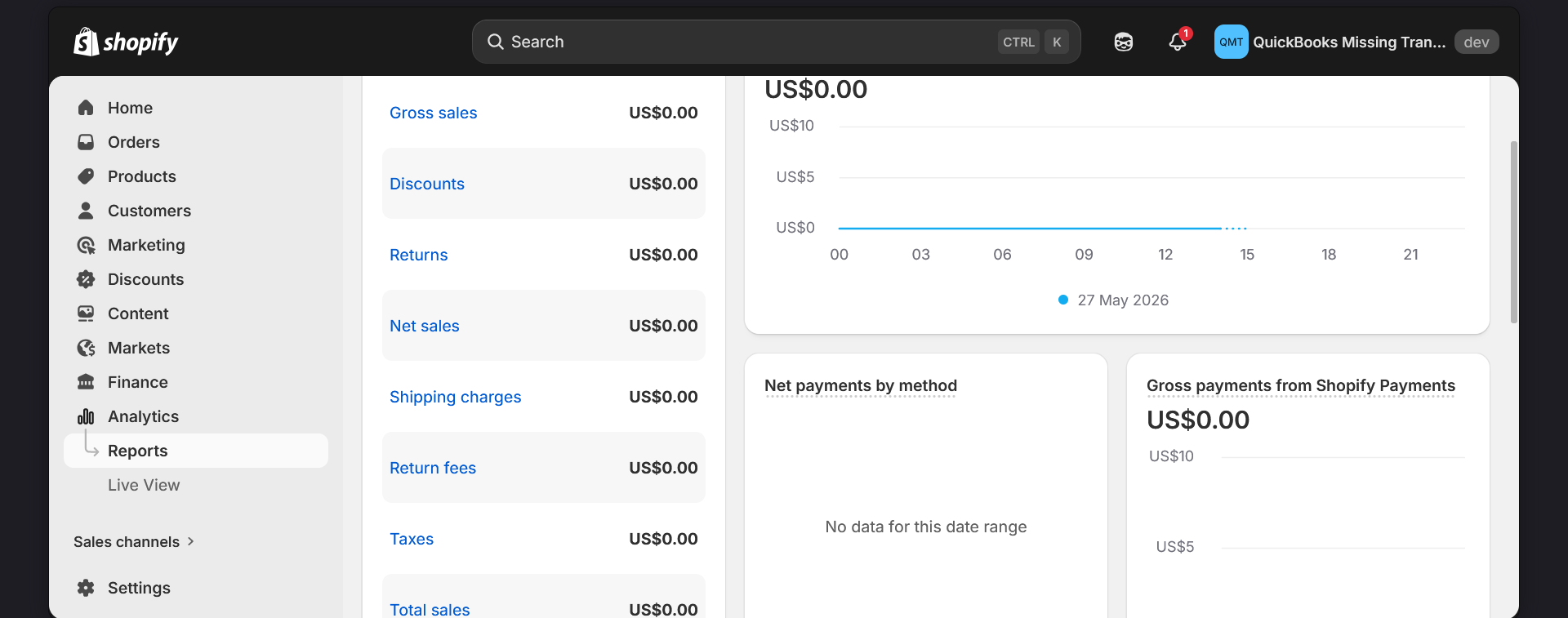
Instead, look at the exact date of that deposit. Go back to your Shopify Finance Summary screenshot workflow. Find the matching date, locate the total sales figure, and manually enter it as a New Deposit or Sales Receipt in QuickBooks. Then, click Match in your bank feed.